How to use AIDeskPro
AIDeskPro is available in several versions. Below you will find all the preliminary instructions to get the most out of it! These instructions apply to all versions (Add-ons and customisations are not included).
After logging in, you will land on your new Chat and have access to two other sections: Chat and Indexes.
📁 Index
An Index is a kind of folder that will contain your documents.
By uploading your files to an Index, you determine their indexing, i.e. their ability to be queried using a Chat.
An Index can contain a single document or thousands: our advice is to create Indexes for each topic (e.g. Commercial Proposals, HR…), to improve the querying experience.
💬 Chat
The chat is exactly what it intuitively seems: a space to ask questions in natural language and get answers in natural language.
The Chat can be used with any of the available LLMs of your choice, and can be linked to one or more Indexes, or not related to any documents (e.g. you can ask it to visit a website and give you information, generate a LinkedIn post, an email…).
Chat with AIDeskPro
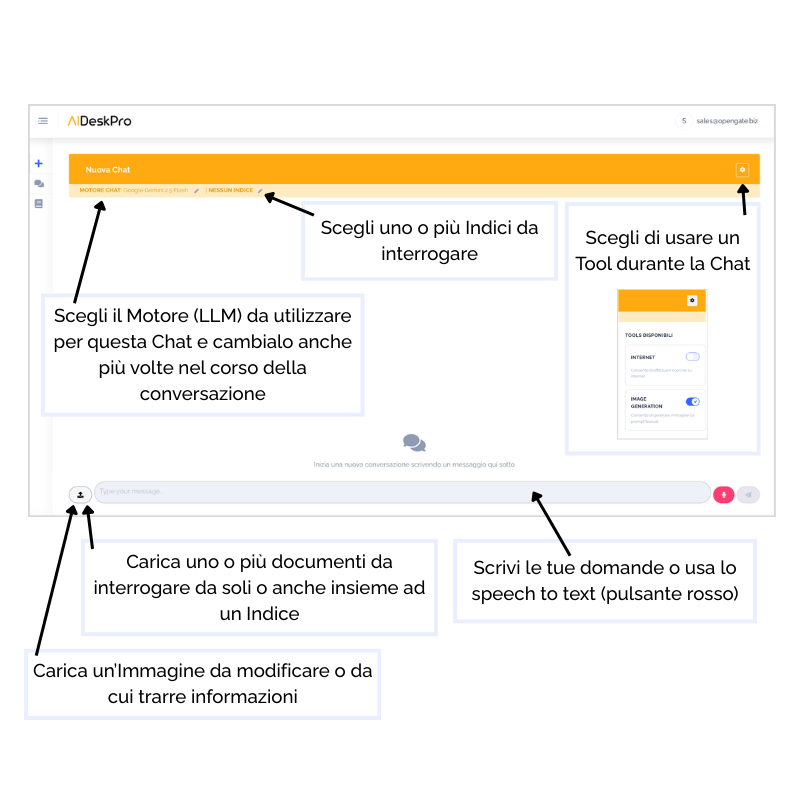
After logging in, you will land on the page to start a New Chat. Here you can choose:
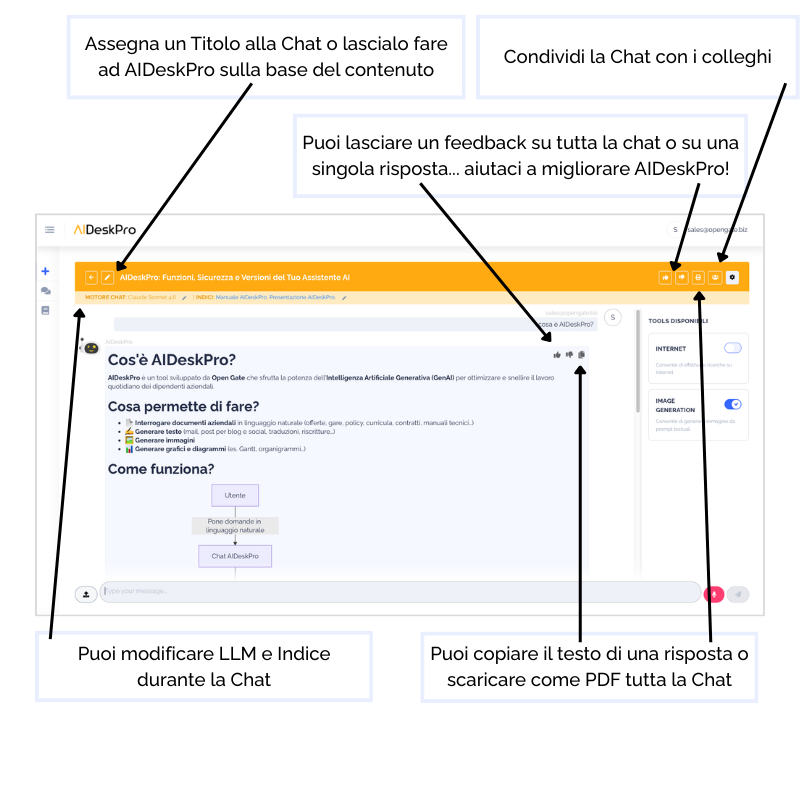
- your LLM (you can switch it multiple times during the Chat)
- the Index to query (even more than one at the same time)
- upload documents and images
- choose which Tool to use to improve the quality of the response (e.g. enable internet search or disable it to get answers only from the queried documents)
The Chat lets you assign a Title, share and download the entire Chat, upload further documents, change LLMs and Indexes and, of course, write your questions in natural language.
Index History
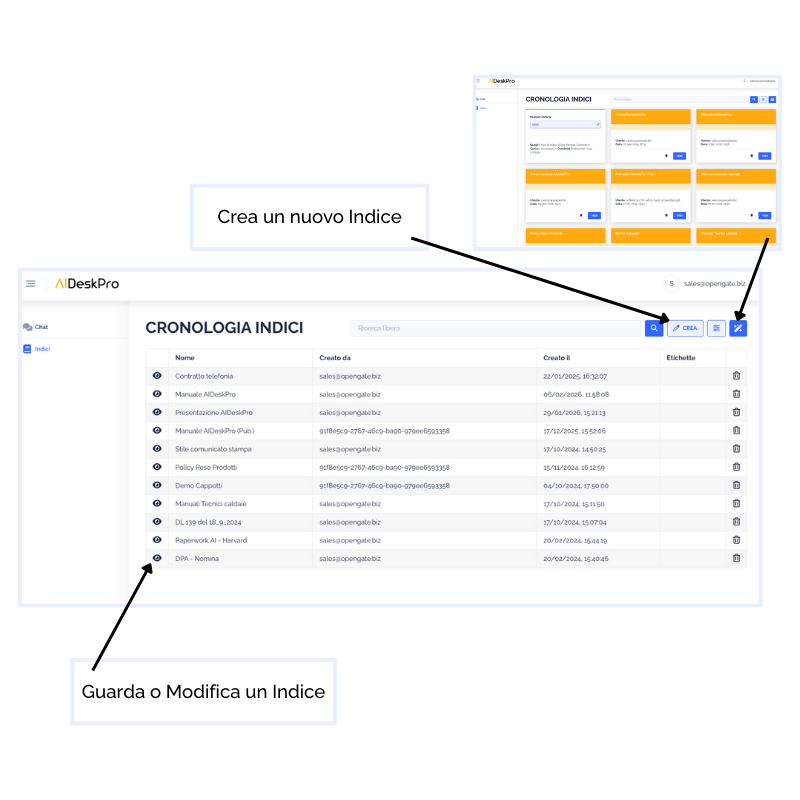
By selecting “Indexes” from the navigation sidebar, you land on the summary page of your existing Indexes (created by you or a colleague who decided to share that specific Index with you).
From here you can:
- change the display mode of the index history (list or card view)
- view or edit an existing Index (using search filters)
- create a new Index
Creating an Index
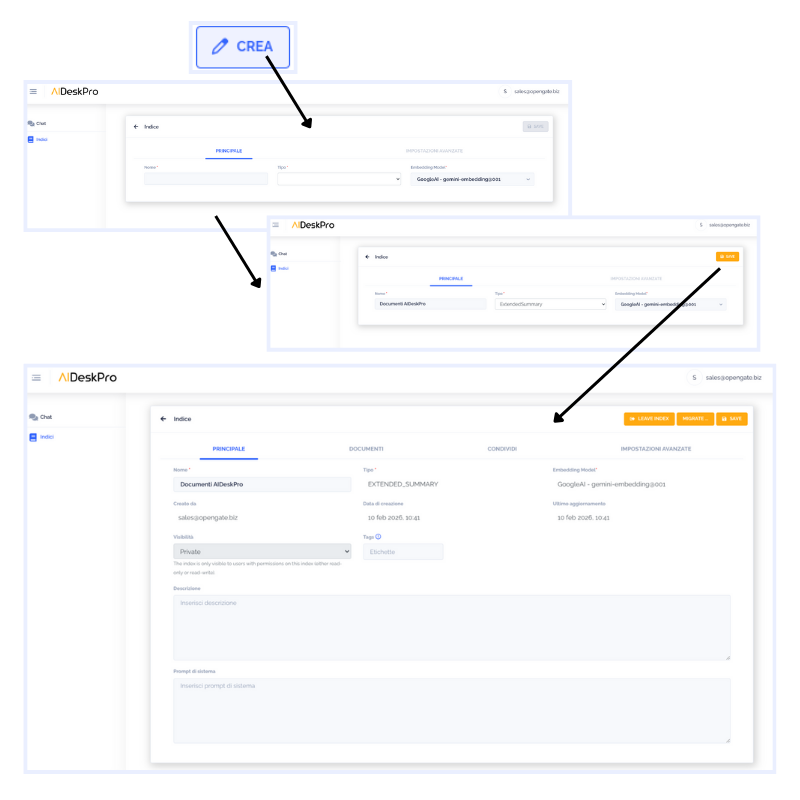
Clicking the “Create” button opens a form asking you to enter the Name of the new Index and the Type:
- ExtendedSummary — if the index contains documents (recommended)
- Composed — if it will contain other Indexes
- Chat — if it will be a Prompt only (no attachments allowed)
Saving opens the full management screen for the newly created Index.
Index sections
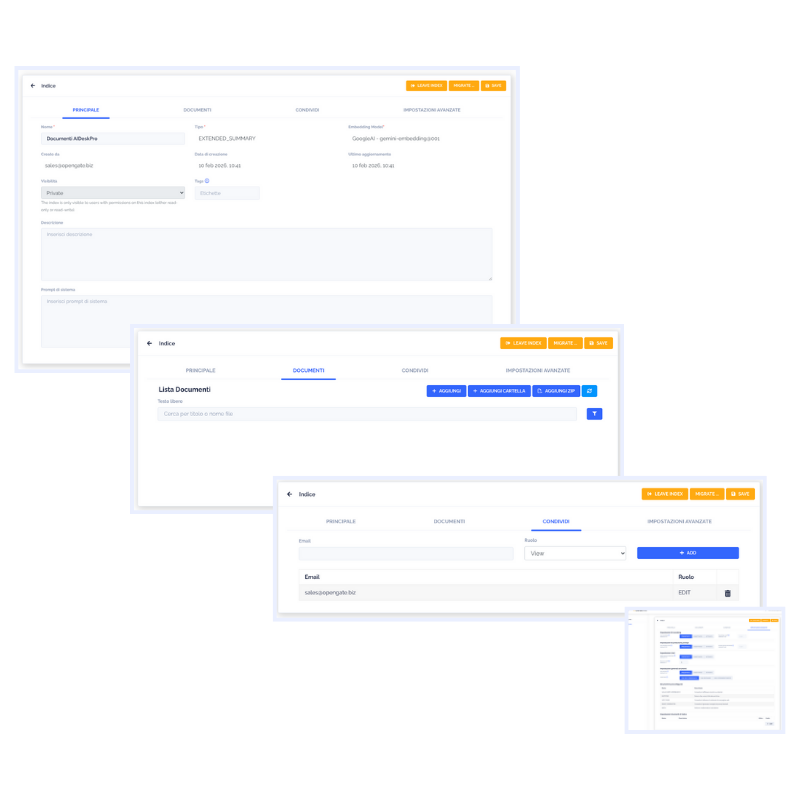
An Index has 4 sections:
Main — shows identifying information (Name and Type) and lets you add Tags (e.g. Sales) to group Indexes by topic. Provides an area for entering Custom Prompts — preliminary instructions used every time this index is used.
Documents — lets you add files, folders or zip archives to the Index.
Share — lets you add the email addresses of AIDeskPro colleagues who will have read-only or editor access to the Index. If no colleagues are added, the Index is visible only to you.
Advanced — gives access to advanced parameters for technical users. We advise less experienced users not to modify these parameters.
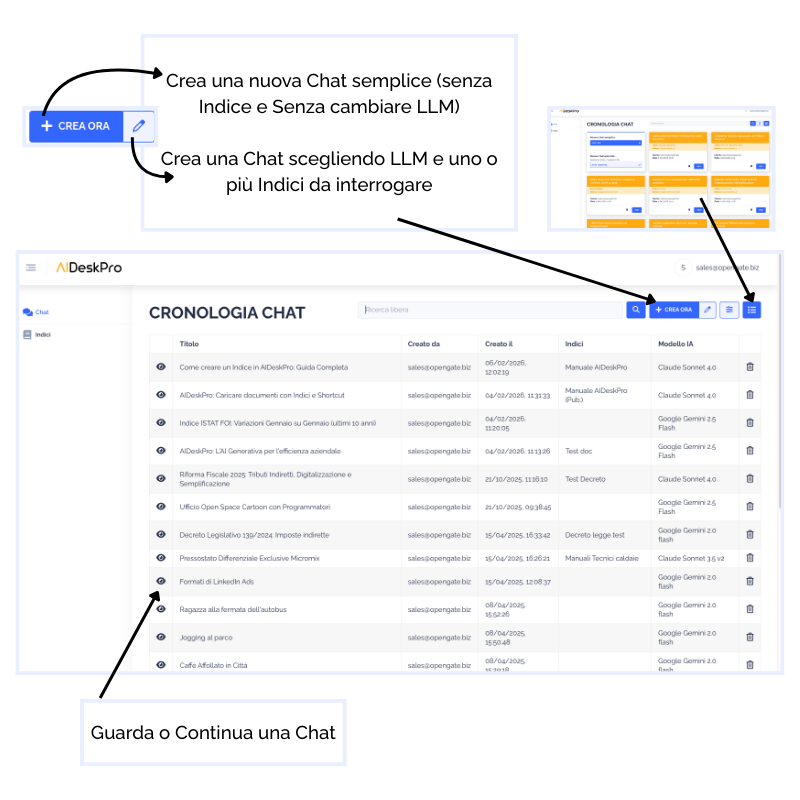
Chat History
By selecting “Chat” from the navigation sidebar, you land on the summary page of your existing Chats.
From here you can:
- change the display mode (list or card)
- view or continue an existing Chat (using search filters)
- create a new Simple Chat (default LLM and no Index) or Advanced (choosing LLM and one or more Indexes)
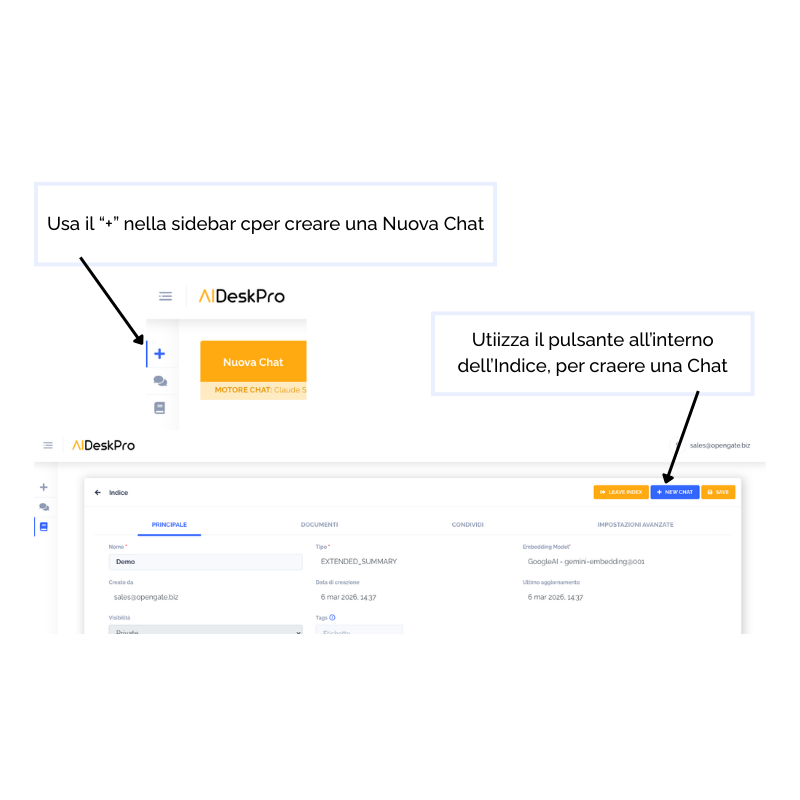
You can create a New Chat simply by clicking the "+" button in the sidebar. Alternatively, if you are creating or editing an Index, you can create a Chat linked to that Index by clicking the dedicated button in the top right.
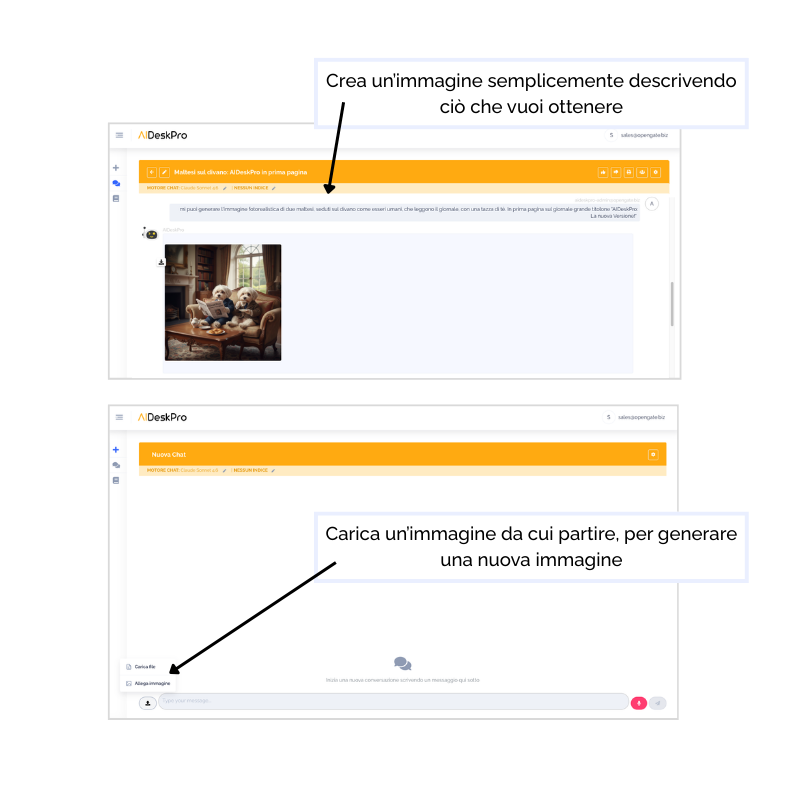
Generating Images
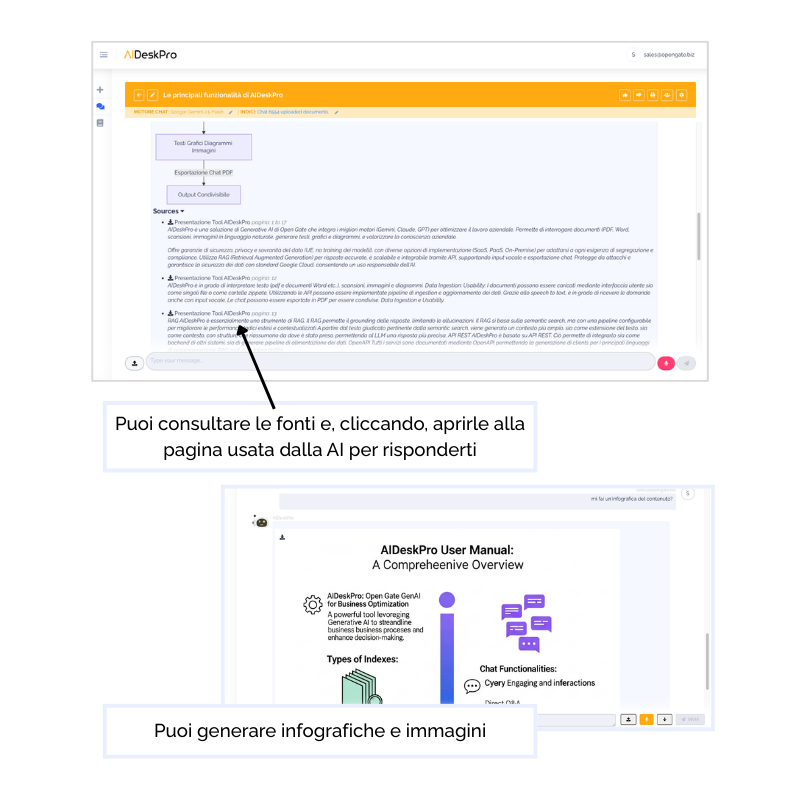
You can create a New Image simply by describing in Chat what you want to generate, or upload an image to start from and modify it.
Images are generated using Nano Banana, the visual generation engine integrated in AIDeskPro.
CHAT
INDEXES